Updating the Site –
This page is meant to be updated for use on a laptop/desktop computer.
It is unlikely to render correctly in a mobile device or tablet, so please make sure you are using the correct device when you work on the site.
After you have finished updating the site elements, PLEASE DO NOT FORGET TO LOG OUT.
Move your cursor to the upper right corner where you see your name, and the dropdown menu contains the LOGOUT link.
Employees and Bios
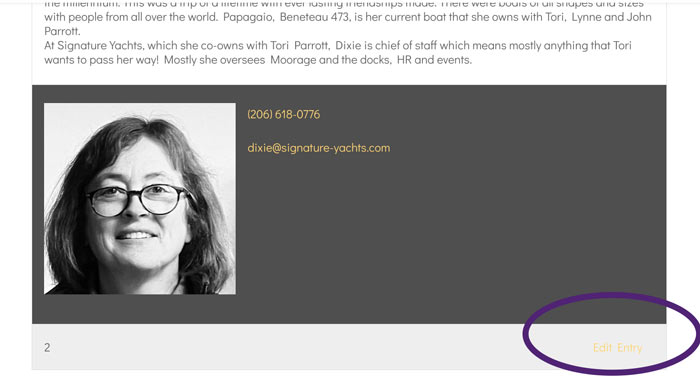
To add an employee to the list, please click here. To edit an existing employee bio, please go to the /about/ page and click on the employee you wish to edit. You will then see a link in the bottom right corner to edit the employee.
Please note the “employee number” in the bottom left corner of the description below. If you add new employees and you want to change the order of the display, you will need to change the “Order Appearance” of each employee with a higher number than the number you are changing – for instance if you want to add a salesperson and you make them a “6”, then each person who was 6 or greater will need to be changed UP by one number. (6 becomes 7, 7 becomes 8, etc). This means you will need to edit each of the employees by clicking through their bio links.
New Yacht Model Detail Updates
To make updates to the New Yacht Models (limited ability due to page structuring), please navigate to the model you wish to update. Both areas are updated using the same link since the information is stored in one file.
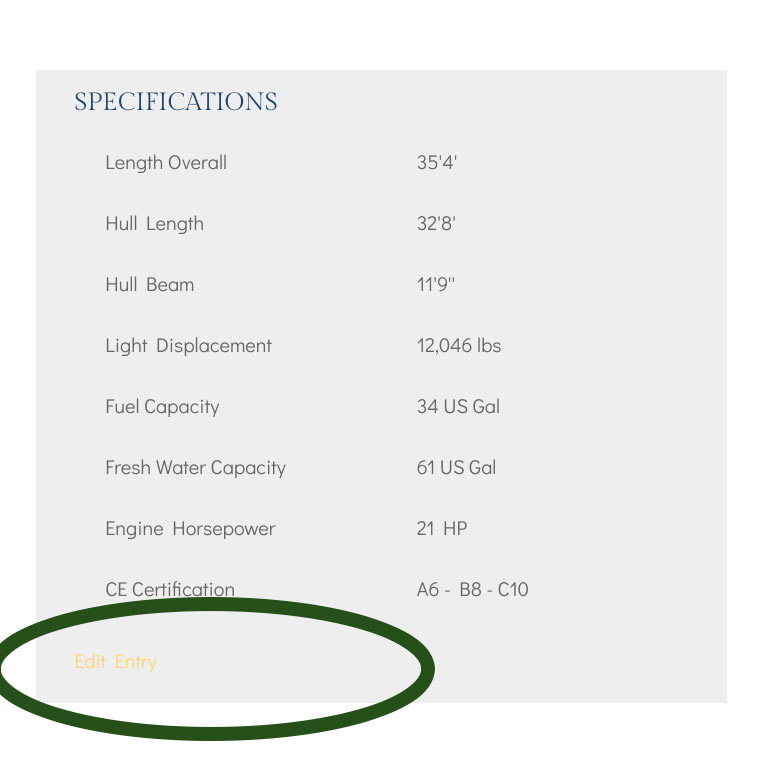
Left column “SPECIFICATIONS” – in lower left corner you will see the link to update these specific attributes. Please do NOT use the metric measurements column, ONLY use the English.
You may upload additional photos – you may delete photos in the current gallery.
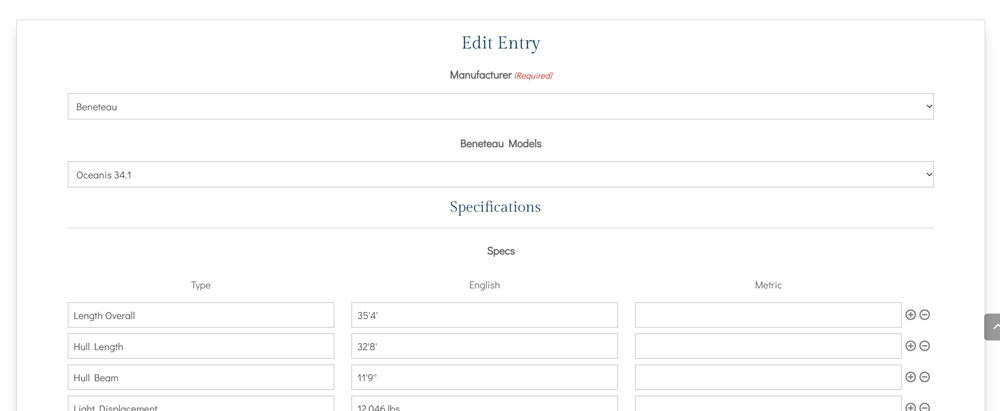
There are various input boxes but the “ADDITIONAL NOTES” field is where the text information is currently stored.
If you wish to remove the yacht model from the list, you may uncheck the “Approved” box in the Entry Editor.
Calendar and Events
To add an event, please click here.
Resources
To add a new Resource, please click here –
To update the Resources, please navigate to the Resources page – you will see the Edit Entry link to the right of each business in the Resources directory.
New Blog Post
News & Events - Update Here
Add updates for News & Events using this form.